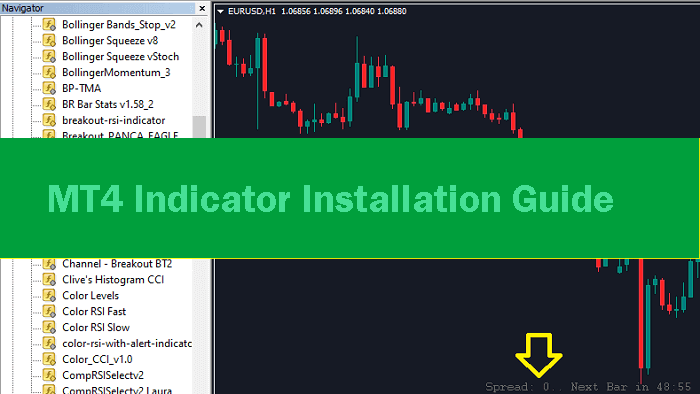

Indicators are one of the most important components of every trader’s trading strategy. However, installing custom indicators on MT4 can be confusing for beginners who are new to Forex and MetaTrader 4.
In this article, IndicatorShare will guide you step by step on how to install custom indicators on MT4 in the most detailed and easy-to-follow way. Let’s get started!
Prepare the Indicator Files
To install an indicator on MT4, the first thing you need is the indicator file you want to use. Indicator files usually come in one of the following formats (both formats are supported by MT4):
-
.mq4
-
.ex4
You can install indicators using either file format without any issues.
- .ex4

- .mq4

These are also the same types of files you download from IndicatorShare.
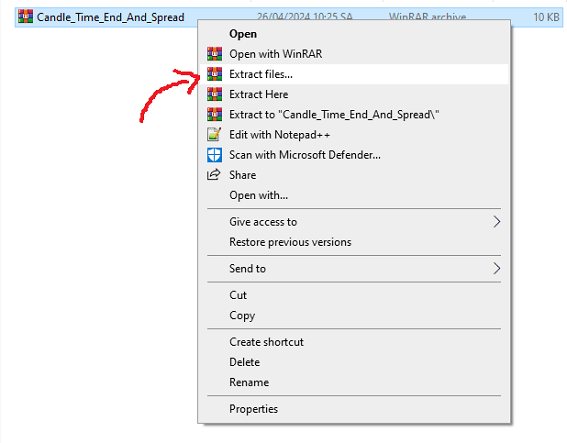
In some cases, the indicator you download may come as a compressed file (RAR format). If that happens, you need to extract the file first. After extracting, you will get an .ex4 and/or .mq4 indicator file, which can then be installed on MT4.
How to Open Built-in Indicators on MT4
By default, MT4 comes with many built-in indicators available right after you install the MetaTrader 4 platform.
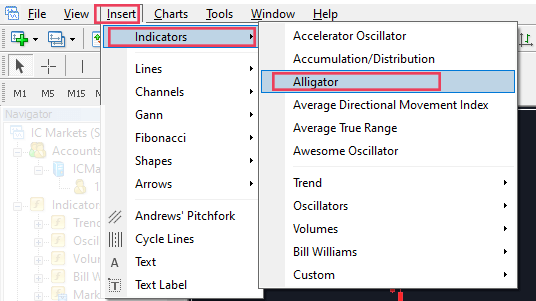
To use these default indicators, open MT4, then go to Insert → Indicators, and select the indicator you want to apply to your chart.
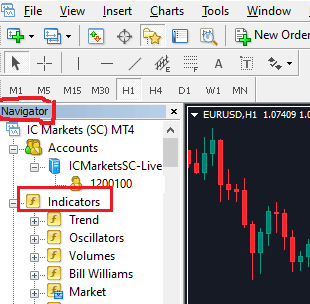
Another faster way is to open MT4 and press Ctrl + N.
Then, in the Indicators section, simply double-click on any indicator you want to use to apply it to the chart.
How to Install a Custom Indicator on MT4: Quick Guide
You can follow the steps below to quickly install a custom indicator on MT4:
-
Open the MT4 trading platform
-
From the top menu, click File → Open Data Folder
-
Open the MQL4 → Indicators folder
-
Copy and paste the indicator file (.ex4 and/or .mq4) into this folder
-
Close MT4 and reopen it
-
Press Ctrl + N, then under Indicators, double-click the indicator you just copied
-
Click OK, and the indicator will be displayed on your MT4 chart
Detailed Guide: How to Install a Custom Indicator on MT4
Step 1: Copy the Indicator File into the MT4 Indicator Folder
-
Open the MT4 trading platform
-
From the top menu, click File → Open Data Folder
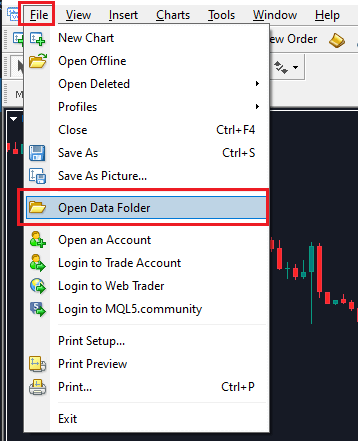
Next, double-click on the MQL4 folder > Indicators folder.
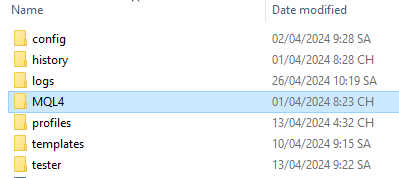
↓
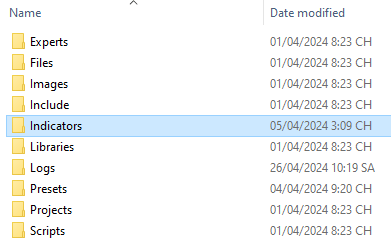
The Indicators folder is where all indicator files on MT4 are stored on your computer.
If you want to add a custom indicator, you need to copy the indicator file into this folder.
Copy the Indicator File into the Indicators Folder
You can copy either one of the files (.ex4 or .mq4), or both files if available. Both formats are supported by MT4.

-
Restart MT4
Close the MT4 platform and open it again.
Step 2: Open the Indicator You Just Copied
After restarting the MT4 platform, it’s time to display the newly added indicator on your trading chart.
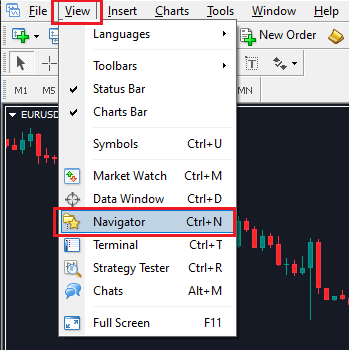
Press Ctrl + N or go to View → Navigator from the top menu.
Next, on the left-hand panel, click the “+” icon in front of the Indicators section.
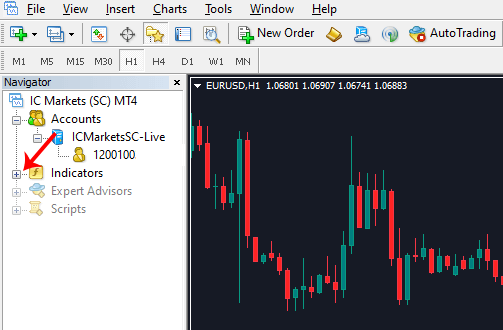
Then, locate the indicator you just copied and double-click on it.
In this example, I scroll down to find the Candle Time End and Spread indicator, double-click on it, and then click OK in the popup window that appears.
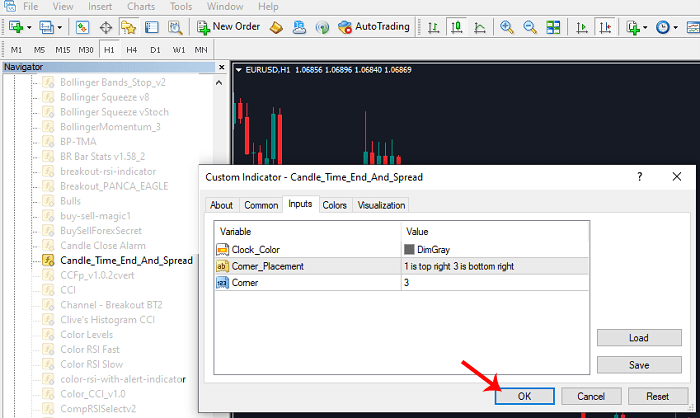
As a result, the newly added indicator is now displayed on your MT4 trading chart.
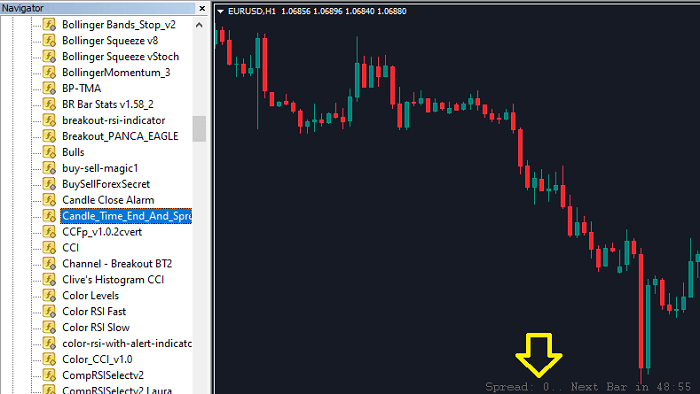
After that, you can press Ctrl + N again to close the Navigator panel.
That’s it — you have successfully added a new indicator to MT4.