Many traders like the candle and background colors of TradingView and want MT4 to look the same, but they don’t know how to do it. In this article, Indicatorshare will show you how to customize the colors of the MT4 trading platform to match TradingView, or any other color scheme you prefer.
How to Do It
1.Take a screenshot of the candlestick chart on TradingView or any platform where you want to “copy” the colors.
2.Upload the image and identify the color details using the color picker tool on imagecolorpicker, then note down the RGB color values.
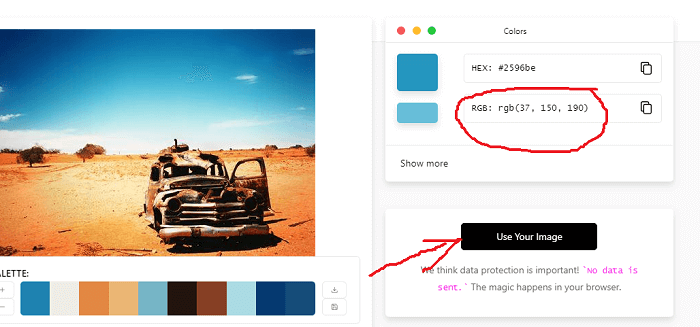
Each color is defined by three numbers. For example, 8, 153, 139 represents a shade of green in the RGB color standard.
3. Enter the RGB color values into MT4
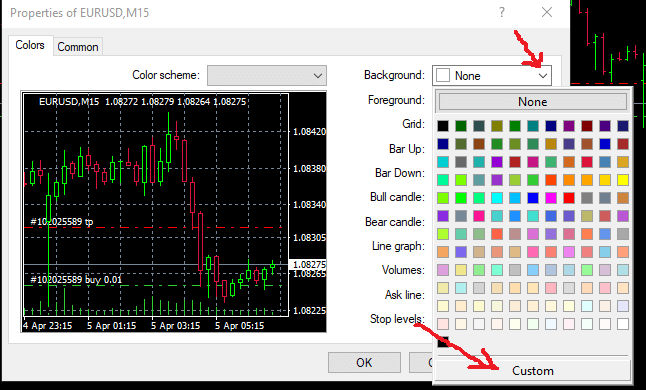
In MT4, press F8 or go to Chart → Properties.
Next, click on the item you want to change the color for. In the example below, we are changing the Background color:
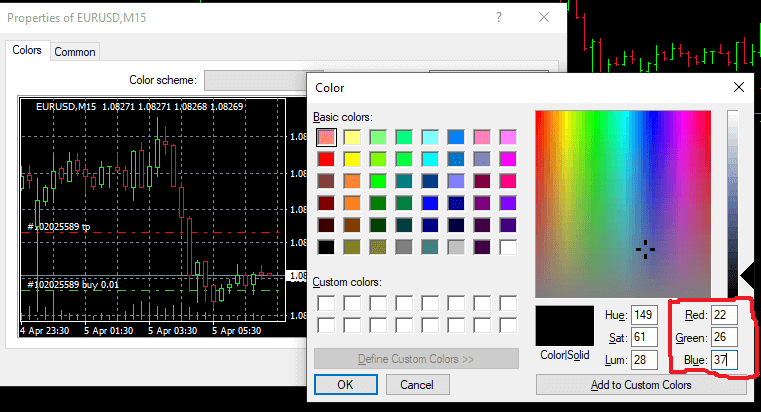
Next, enter the desired color values into the Red, Green, and Blue fields, matching the RGB color code you obtained in Step 1.
TradingView Color Palette (RGB Values)
After taking a screenshot and extracting the color information, I customized the MT4 chart colors to match the example shown below.
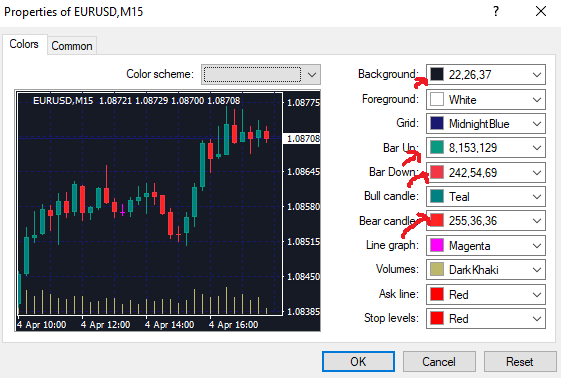
Good luck with setting it up! If anything is unclear, feel free to leave a comment in the section below so we can discuss and figure it out together.